
LoadLedger is haul-ticket software for the construction industry. It replaces the paper ticket a dump-truck driver gets at the pit scale with a digital record: a photo of the scale ticket, a GPS location and a timestamp for every load. The contractor reviews, cost-codes and approves those loads the same day, instead of reconciling a pile of carbon copies at the end of the month.
Black River uses LoadLedger on its own jobs. Learn more at loadledger.net, or sign in at app.loadledger.net.
The problem it solves
On a typical job, a driver loads at a quarry, gets a paper scale ticket, hauls the load and drops the ticket somewhere. Tickets get lost, rained on, misread or miscounted. At billing time the office matches handwritten notes against whatever paper survived, and disputes (“we hauled 40 loads, you paid for 36”) have no evidence behind them.
LoadLedger captures the ticket when the load is hauled. Each one carries the pit’s ticket number, a photo, GPS and a time, so the count is right and every load can be checked.
Who it’s for
- Contractors (excavation, site work, paving, utilities) hire trucks to haul rock, road base, fill and topsoil. They need an accurate, approved count of loads per job and cost code, to bill the owner and check the pit’s invoice.
- Trucking companies and owner-operators need proof of every load they hauled, and for whom, so they get paid correctly.
Two mobile apps
Driver app
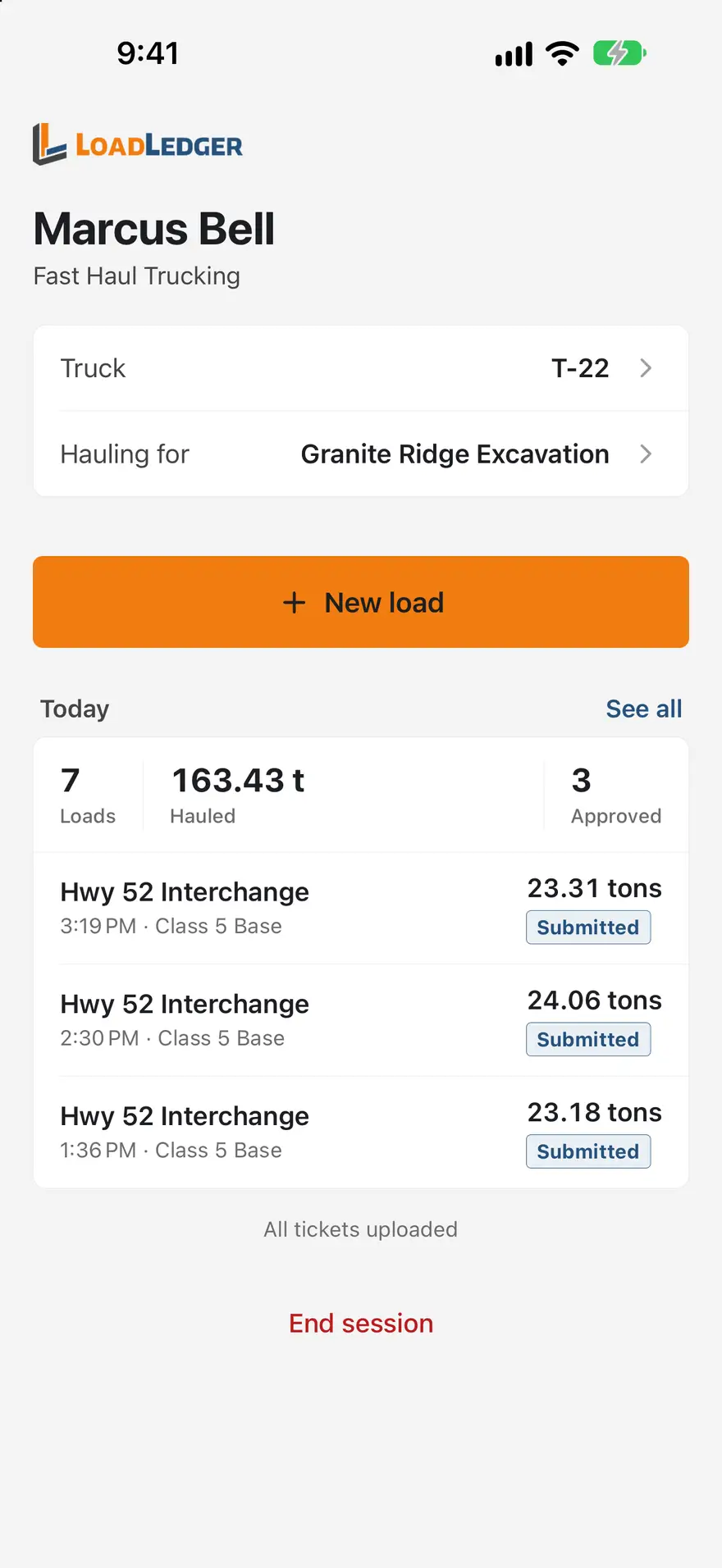
For truck drivers, with no email or password. Drivers sign in once with the trucking company’s 6-digit PIN and their name, enter a truck number at the start of the day, and log each load in about a minute:
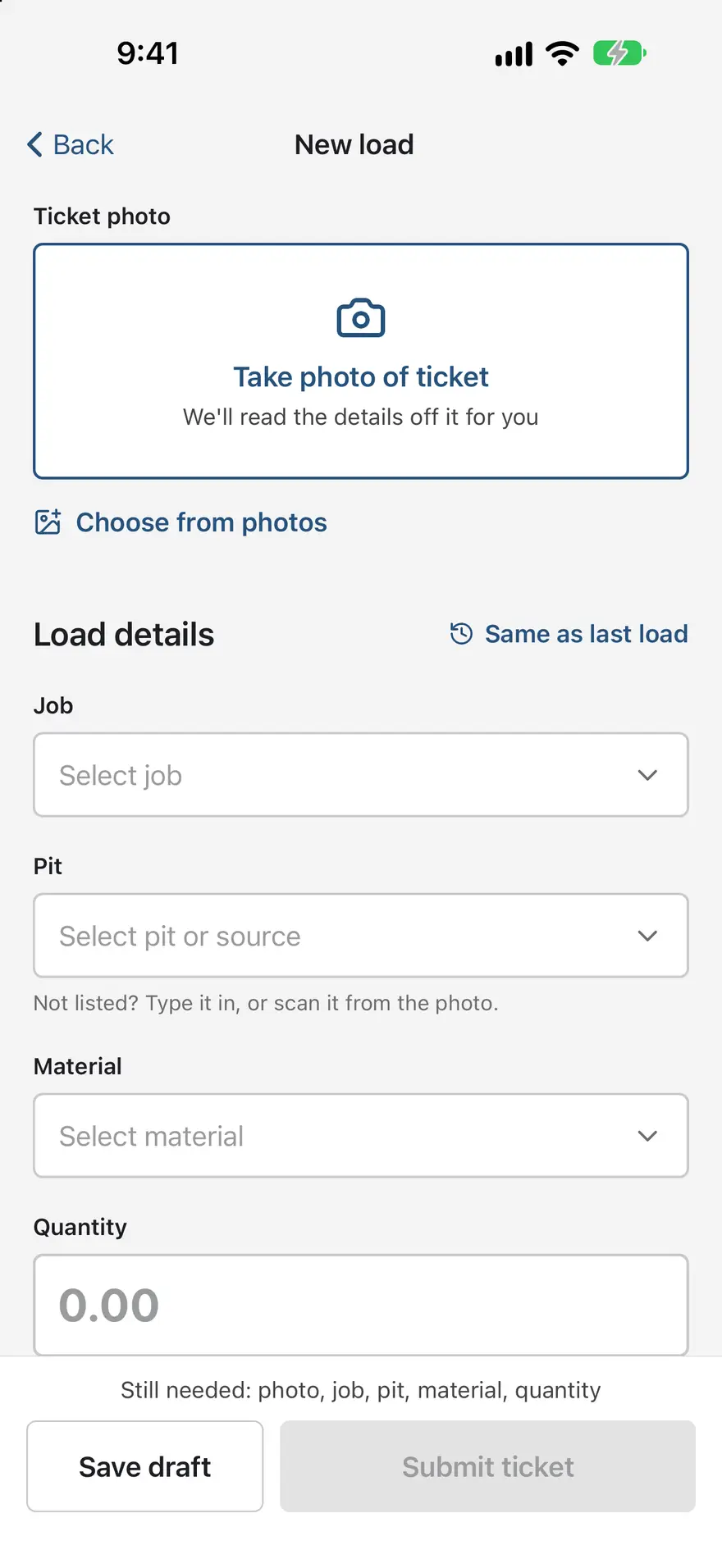
- Tap New Load and photograph the scale ticket.
- Pick the supplier, pit, material and job from lists, or type a new one.
- Enter the quantity in tons, yards or loads, and submit.
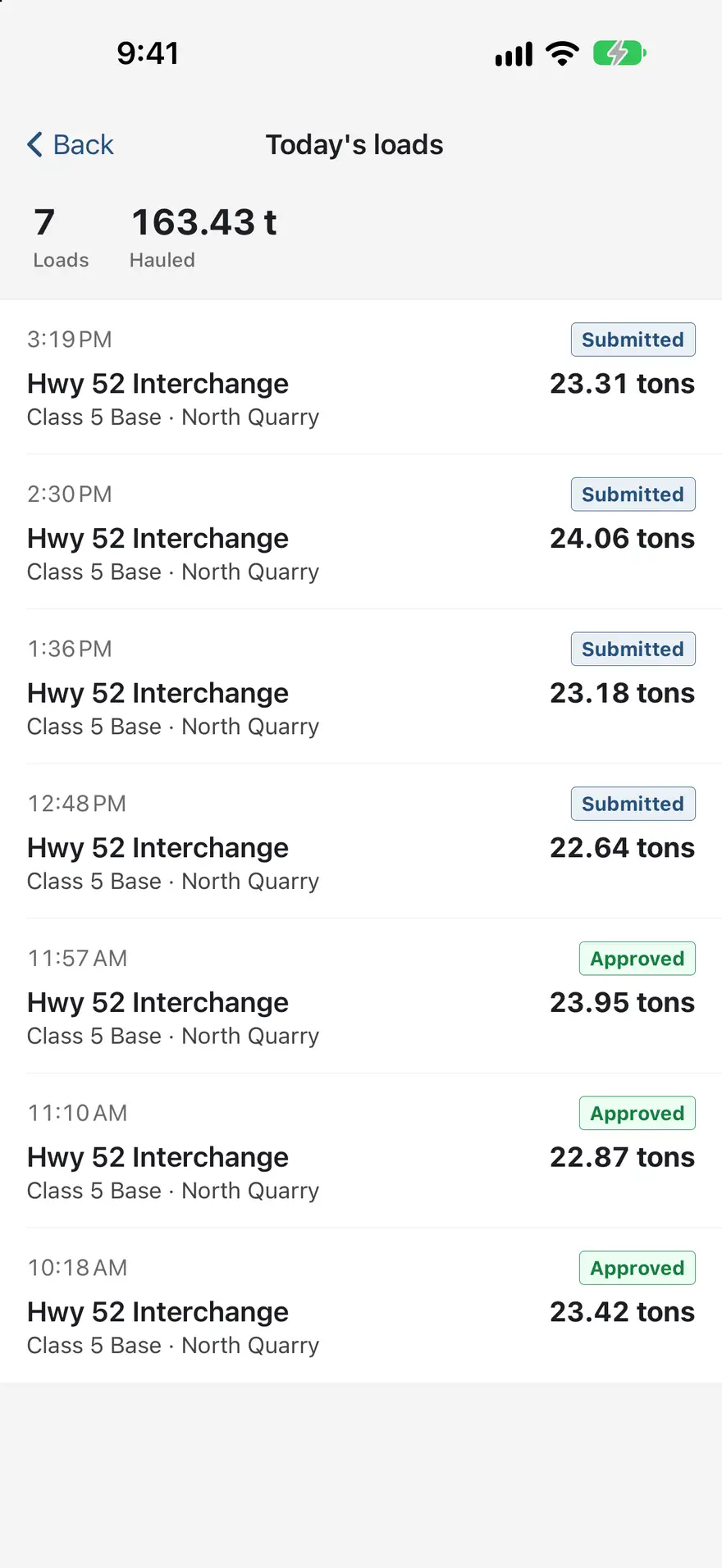
Autofill From Last Trip repeats the last load, so on back-and-forth runs only the quantity changes. A scan button reads a value off the ticket photo, and a half-finished ticket can be saved as a draft. With no signal, tickets queue on the phone and upload by themselves later. Today’s Loads shows what’s been sent and its status; if the office flags a ticket, the driver sees why and can fix and resubmit it.
Field app
For superintendents and the field office:
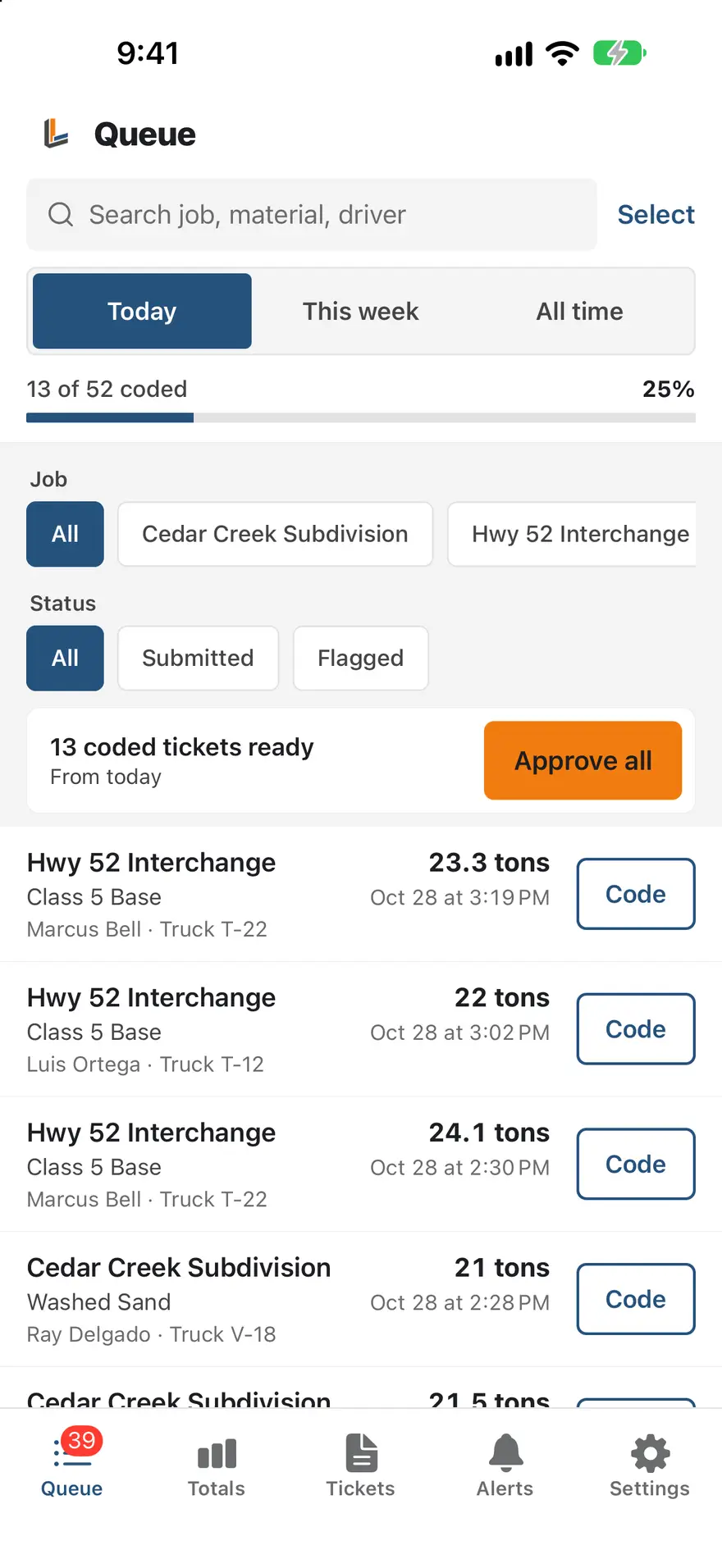
- Queue of the day’s loads that still need a cost code, with a coding progress bar and filters by date, job and status.
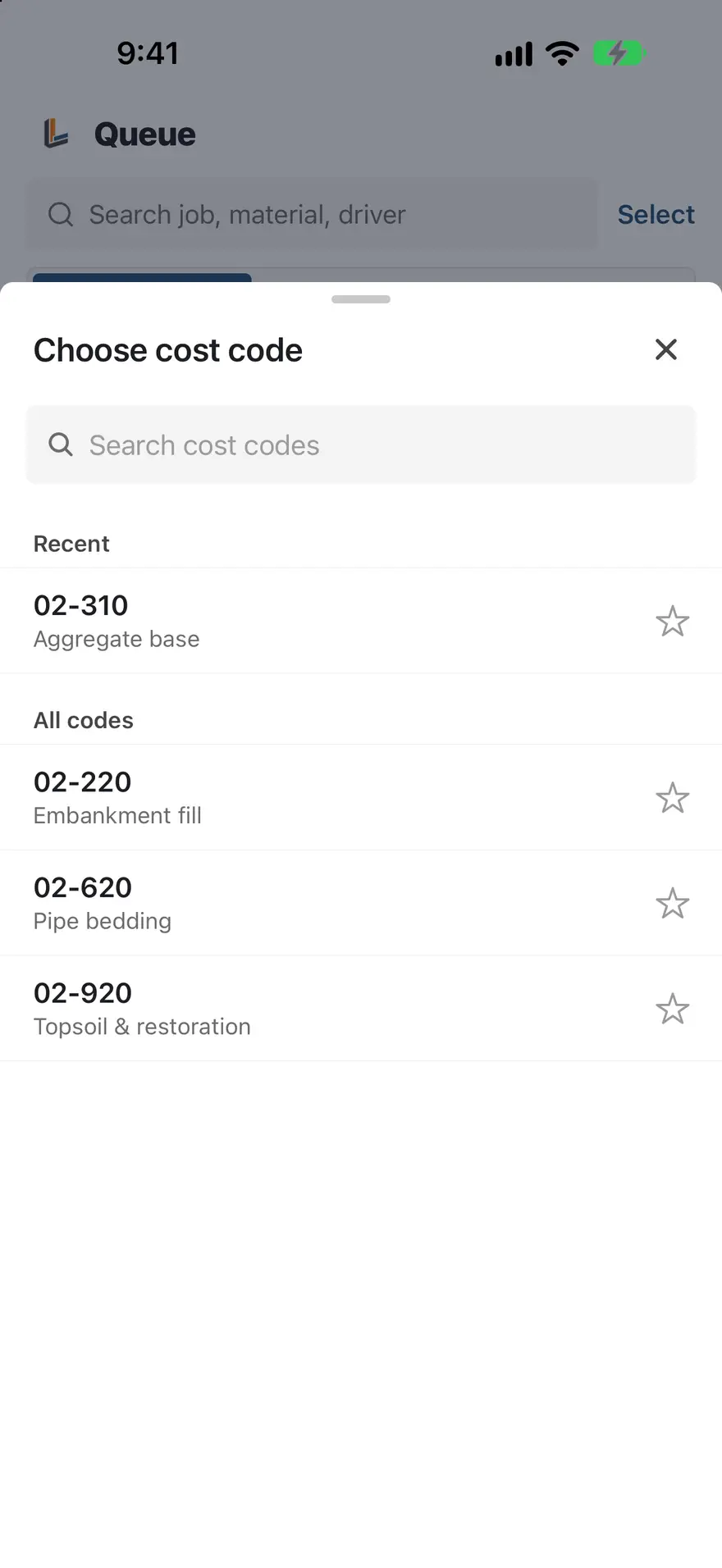
- Code loads with one tap, with starred favorites at the top, select many at once, and Approve All Coded. Coding works offline and syncs later.
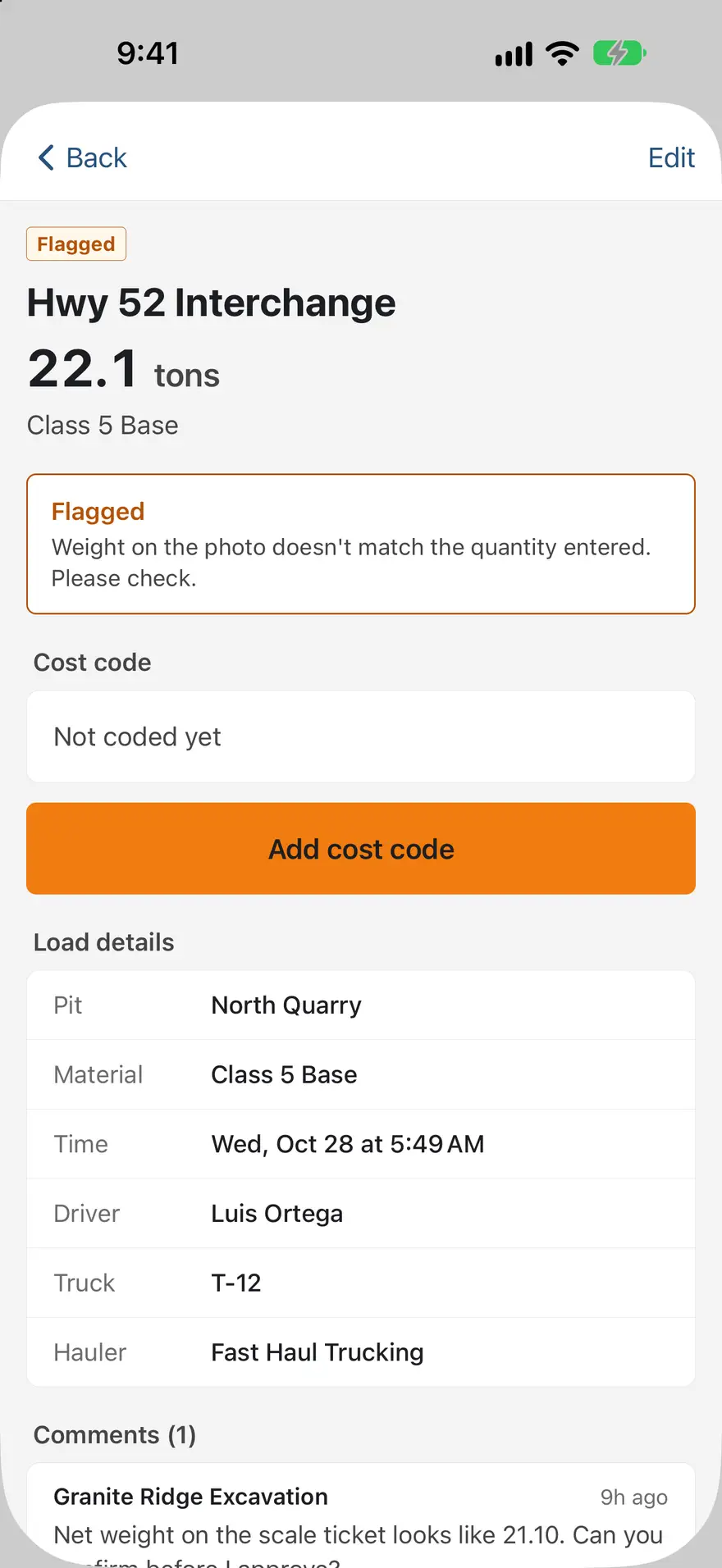
- Ticket detail with the photo, all the details and comments. Assign a code, approve, edit or comment; owners, admins and dispatchers can flag a ticket, and owners and admins can void one.
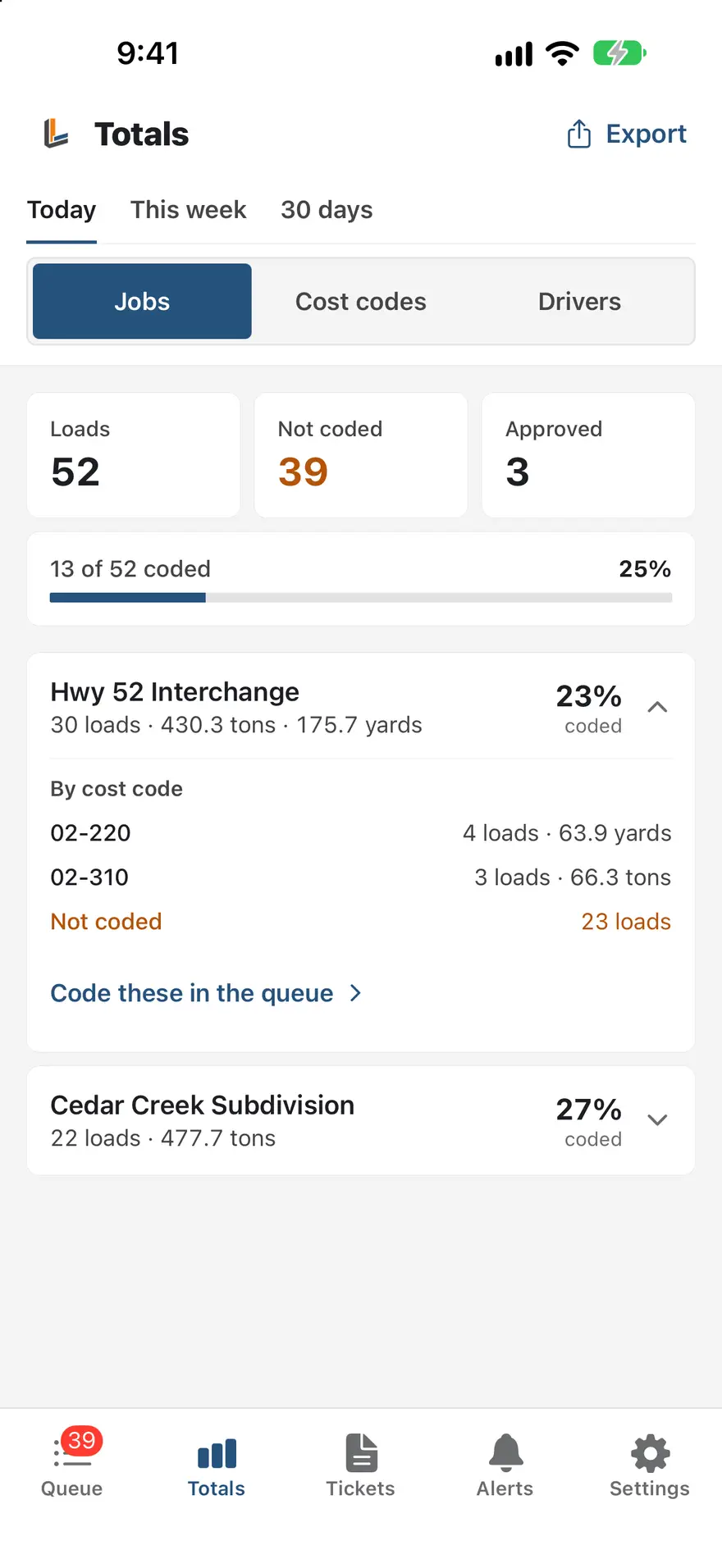
- Totals of loads and quantity by job, cost code or driver for today, this week or 30 days, shared as a spreadsheet.
- Alerts, including push notifications, and an audit trail of who did what, and when.
The web dashboard
Contractors manage everything from a web dashboard:
- Tickets to search and filter by status, job, trucking company and date. Check each one’s photo, map location and details, then assign a cost code and approve, edit, flag (with a reason) or void it, one at a time or many at once. Comment back and forth with the trucking company, and export to CSV.
- Reports for any date range by day, job, job and product, subcontractor, product, pit, driver or hour of day, all exportable to CSV, to bill the owner and check pit and hauler invoices.
- Lists of jobs (with job numbers, addresses and load targets), pits, products, cost codes and suppliers, which are what drivers pick from.
- Sub Companies to connect the trucking companies you hire, rate them, and browse a directory of haulers.
- Team roles for office and field staff: Owner, Admin, Dispatcher, Superintendent, Driver Manager and Viewer.
- Imports: pit invoices emailed to your Outlook inbox are read automatically, and each load on them becomes a ticket for review, which covers trucks that don’t use the app.
Trucking companies get their own dashboard, with every ticket their trucks submitted for every contractor, driver PINs they can create, limit to certain jobs or deactivate, the phones signed in on each truck, reports by day, contractor, driver and product, and a company profile that shows in the contractor directory.
How a load flows through the system
- A driver hauls a load and submits it in the Driver app.
- It appears immediately on the contractor’s dashboard and in the Field app as Needs review.
- A superintendent assigns a cost code, in the Field app or on the web.
- The office or the superintendent approves it, or flags it with a note; the driver fixes a flagged ticket and resubmits.
- Approved loads roll up into reports, ready to bill the owner or check against what the pit and hauler charge.
Getting started
Contractors sign up, choose Contractor and get a contractor code. Add jobs and cost codes (pits, products and suppliers are optional, and drivers can type new ones), invite the office and superintendents, then connect trucking companies by email invite, a texted one-time link, your join link or your contractor code. After that it’s a few minutes a day reviewing tickets, instead of an afternoon a month.
Trucking companies sign up as a Sub company, or open the invite or join link a contractor sent. Connect to each contractor you haul for, create a driver PIN, and give it to your drivers.
Drivers get the PIN from their dispatcher, open the app, tap Get Started, enter the PIN and their name, then their truck number, and tap New Load after each load.
The Driver and Field apps run on iOS and Android, and the LoadLedger help center walks through each step with screenshots from the real apps.